Introduction
This interface will make adding an alarm to a compatible Mercedes simple- giving door triggers, parking lights, and OEM key fob control over the vehicles CAN network.
If you purchased the plug & play alarm kit from Mid City Engineering, the alarm will come with universal instructions for the alarm brain. Please refer to the alarm instructions for basic alarm installation information, accessory connections, and wiring schematic, but please note the alarm is a universal alarm and will have many extra wires that are not used for this application.
Installation for the interface and alarm requires the following connections to the vehicle:
- 12V constant power (to alarm brain)
- Chassis ground (to alarm brain)
- 12V Ignition power (to alarm brain)
- CAN
- Data cable (connection between alarm module and 205INTC CAN interface). This cable will supply power and ground to the CAN interface
In addition to the connections above, the Compustar alarm DAS sensor will need to be mounted to the firewall or other suitable location, the siren for the alarm connected and mounted, and whatever alarm accessories are being used (RF remotes, smart phone control, RPS touch, EZ go, indicator LED, thermistor, glass break sensor, etc.)


Featured Document
-
-
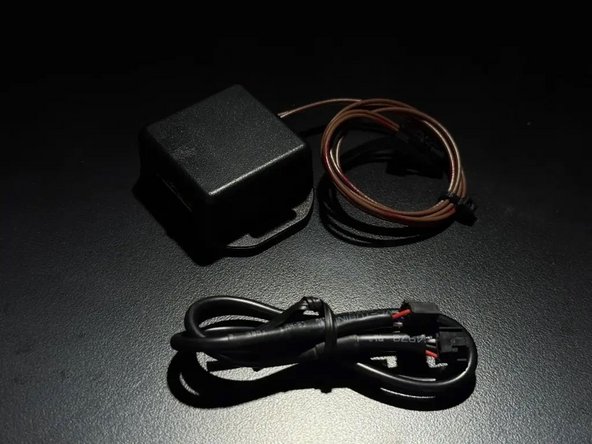
The CAN interface has a twisted pair for brown and brown/red wires terminating to a 2-pin plug. This is used for the CAN connection to the vehicle and will be connected to an empty spot in the specified CAN distribution block in the vehicle
-
The required CAN distribution block will be populated with mostly brown and brown/red OEM wires
-
Click here for vehicle specific CAN distribution block locations
-
-
-
Plug provided CAN wires into any empty spot in the specified CAN distribution block with brown and brown/red OEM wires
-
Connect CAN harness to white plug on 205INTC module, being sure connection is seated well
-
-
-
Locate constant 12V power source in vehicle. Typically this can be found in the vehicle's fuse box.
-
Connect 12V constant wire from alarm brain. If hardwiring, be sure to solder and insulate connections. Make sure that power connection is used.
-
-
-
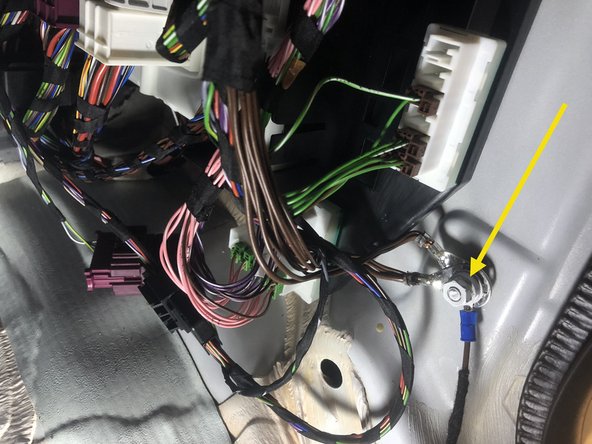
Connect black wire from alarm (ground) to chassis ground
-
Plug & play alarm kit from MCE will include a ring terminal for ground connection at grounding bolt
-
-
-
Locate 12V ignition source in vehicle. This can typically be found in a fuse box or at a cigarette lighter or USB port
-
Connect green ignition wire from alarm from alarm brain to 12V ignition source
-
If using an alarm/remote start brain (eg. CMX) wire a diode in-line on the ignition wire with the stripe on the diode facing the alarm brain
-
Solder and insulate all hardwired connections
-
-
-
The 205INTC module includes a black 4-pin to 4-pin data cable in the box
-
Connect one end of data cable to 4-pin BLACK port on Compustar alarm brain
-
Connect one end of data cable to 4-pin BLACK port on 205INTC CAN interface
-
-
-
Connect DAS sensor to RED port on Compustar CM module
-
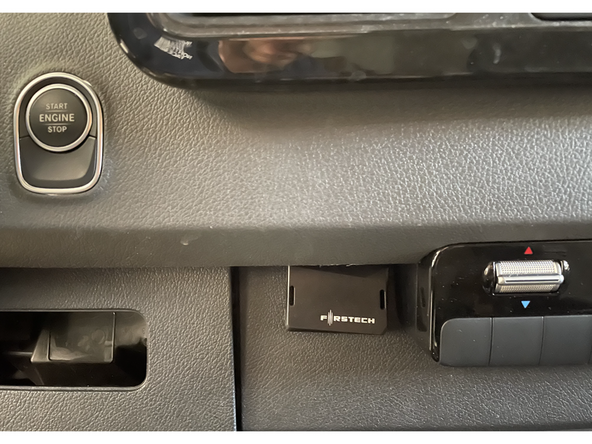
Mount Compustar DAS sensor securely
-
It is recommended to mount the sensor to a solid - semi solid surface centrally located in the vehicle for the best results.
-
DO NOT mount any sensors or accessories near any heat sources or moving parts (eg, vents or steering column)
-
Make sure to mount sensor before testing. Close all windows and doors before testing.
-
The DAS sensors are already programmed to a default sensitivity. The sensitivity of the shock and tilt sensing can be adjusted. Click here for sensor programming instructions.
-
-
-
Mount siren securely under hood
-
Carefully run siren wires through firewall to cabin where alarm brain is located
-
Run wires clear from any moving parts or heat sources
-
Connect BROWN wire (siren output) from Compustar alarm brain to RED wire from siren
-
Connect BLACK wire from siren to chassis ground
-
Solder and insulate all connections
-
-
-
Close all doors, the hood, and trunk. Alarm will not arm if any doors or the hood/trunk are open
-
Use OEM key fob to lock doors and confirm alarm is armed (siren will chirp 1X). If siren chirps 3X, the vehicle is not fully closed.
-
Use OEM key fob to unlock doors and confirm alarm disarms (siren will chirp 2X)
-
If OEM key fob arms and disarms the alarm, sit inside vehicle and arm alarm- open door from inside and confirm that alarm triggers
-
If alarm is triggered, you need to press unlock 2X to fully disarm alarm (first unlock command will silence alarm, but alarm will stay armed- second unlock command will disarm alarm
-
-
-
Compustar Drone: Connect Drone data cable to GRAY port on Compustar alarm brain
-
Do NOT connect Drone to 4-pin gray cable on 205INTC CAN interface module
-
If installing Drone, must use Compustar that has two data ports
-
Register and setup Drone using Drone mobile application
-
Compustar RF remotes: Plug RF antenna into corresponding 4 or 6 pin BLUE plug on Compustar alarm module
-
Compustar remote programming: Cycle key from off to ignition 5X- parking lights will flash 1X after the 5th cycle. After the 5th cycle, press the button on the antenna (if antenna has a button) and press LOCK on each Compustar remote. Parking lights will flash when each remote is paired. Parking lights will flash 2X when exiting programming
-
For push to start vehicles, it is recommended to remove the PTS button to insert the key and turn to the 2nd position for ignition on
-
With ignition on, you will see all warning lights on instrument cluster. Verify that you are in the second positin (ignition) by seeing warning lights appear 5 seperate times on cluster
-
-
-
Alarm LED: The Compustar alarm brain includes an LED. Connect LED to 2-pin alarm port on Compustar brain (optional). If using an LED, this is typically mounted somewhere on the dash for visibility when the alarm is armed.
-
LED behavior: when alarm is armed, the LED will turn on solid. After 30 seconds, the LED will flash. The flashing LED indicates that the sensor is fully armed. If the alarm is triggered, the LED will flash in a numerical pattern (number of flashes followed by a pause and repeate) until the next ignition cycle.
-
The number of flashes indicates the reason for the alarm trigger (door open, shock/tilt sensor, etc) Refer to the Compustar alarm manual for alarm codes.
-
For all other Compustar accessories: Refer to the Compustar guides for each accessory
-
-
-
Locate a place to secure all modules and accessories
-
DO NOT mount any modules or accessories near any heat sources or moving parts (eg, vents or steering column)
-
Reassemble vehicle
-
Attached Documents
