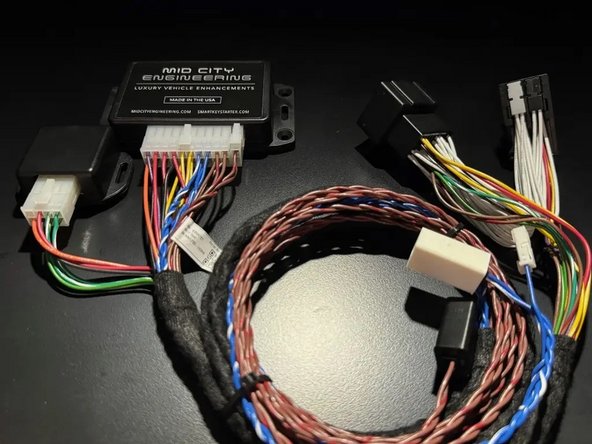
Introduction
IMPORTANT: FOLLOW INSTALLATION GUIDE IN ORDER - DO NOT DO STEPS OUT OF ORDER. INSTALLING THE SYSTEM IN SEQUENCE OTHER THAN DESCRIBED IN MANUAL COULD CAUSE DAMAGE
STEP 13 (CONNECTING CHASSIS SIDE EIS HARNESSING TO T-HARNESS) MUST BE DONE AFTER THE T-HARNESS IS CONNECTED TO THE BACK OF EIS AND MAIN HARNESS IS CONNECTED TO MODULE
The SKSNG205 is a remote start and alarm interfaces for Mercedes W205/X205 C Class and GLC
Out of the box the remote start will working using the OEM key fob (1X press of the panic button or Lock-Unlock-Lock, if no panic button on key)
Vehicle Compatibility:
SKSNG205D4:
Push to start (Keyless Go or Keyless Start)
- C Class 2015-2018
- GLC 2016-2019
The SKSNG205 is compatible with the following add-ons:
- Any current Compustar Drone Smart Phone Control (X1, X2, LTE, MAX, XC)
- Compustar DAS II digital sensor for shock, tilt, glass break, and tow sensing (uses OEM horn for alarm)
- Compustar RF antenna and remotes (NON-AM remotes only, AM remotes NOT compatible)
- Directed Smart Start
- Compustar external remote start + alarm brain (eg, CM900, CMX)
- Compustar KeyLocker
- Compustar KP2 touch pad(KeyLocker or Compustar CM module required)
Installation for the SKSNG205D4 requires the following:
- EIS (ignition switch) removal through radio cavity
- EIS jumper modification. Detailed instructions for EIS modification here: SKSNG205D4 & SKSNG222D4 EIS Jumper & Pin Installation Instructions
- T-harness installation to EIS
- Key box installation (extra key required for installation)
- CAN connection T-harness at distribution block under passenger floor
- Keyless Go jumper harness
There is no flashing required for this installation, but options settings can be programmed using the instrument cluster menu. See user's manual (link below) for options settings. Please go through menu to make sure settings such as run time are set to preferred setting.
DO NOT MOUNT THE MODULE NEAR ANY HEAT SOURCES IN THE VEHICLE. SPECIFIC LOCATIONS TO AVOID ARE THE HEATER CORE ANDTHE TRANSMISSION TUNNEL
See end of guide for troubleshooting error codes
Tools
No tools specified.
Parts

-
-
Open center console
-
Remove silver trim in front of center console
-
-
-
Remove 2X T-20 screws in front of center console
-
-
-
Un-clip and set aside console panel below radio screen
-
-
-
Un-screw 2X T-20 screws on brackets in upper corners of radio
-
Screws do not need to be fully removed. When the screws are un-screwed enough, the brackets will release
-
Once brackets are released, pull out and set aside radio deck
-
-
-
On the left side of the radio cavity there is a plastic grill. A small piece of plastic must be cut out of this grill to create a large enough opening for the EIS (electronic ignition switch) to be removed through
-
-
-
Pull out push to start button and set aside (the push button is a cap that can be removed)
-
Un-clip the EIS (electronic ignition switch) from the dash and pull through radio cavity
-
Note: there are tabs on the top and bottom of the EIS. The EIS un-clips from the dash by squeezing those tabs toward the center of the EIS and pulling towards the front of the vehicle
-
-
-
Un-latch 40 pin connector plugged into back of EIS by pressing locking tab above grey latch and pushing latch up
-
Disonnect 40-pin connector from EIS
-
This is the harness that will be used to install the T-harness of the SKSNG205D4 to the EIS
-
-
-
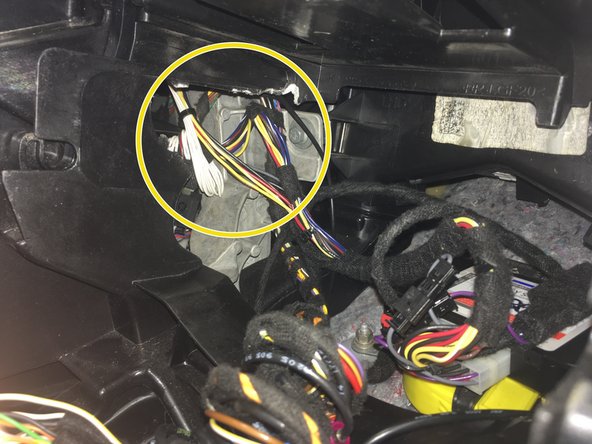
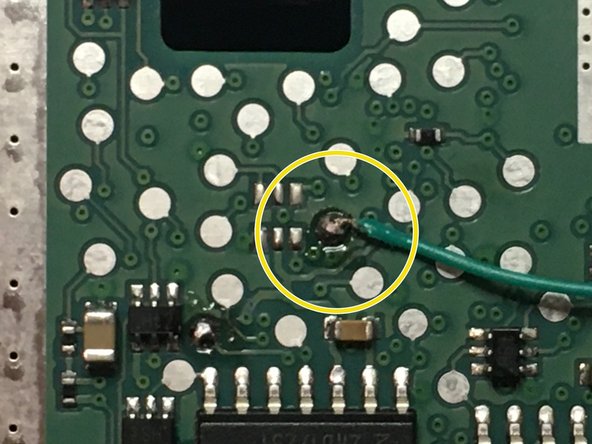
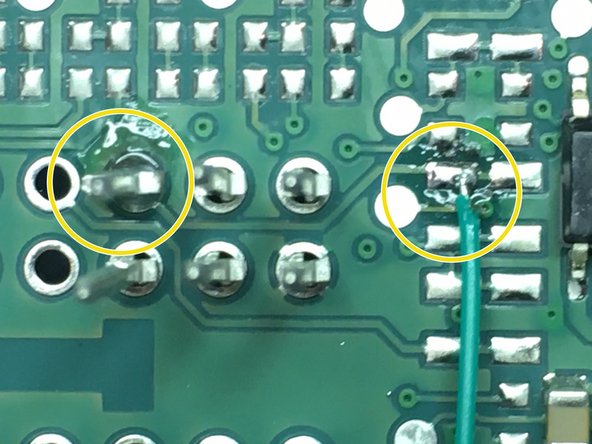
A jumper must be installed on the ignition switch in order to complete this installation. The jumper is a pin and a wire that is soldered on to the board of the switch (see pictures for solder points for pin and wire). To the left there are pictures of the modification.
-
Detailed installation instructions for EIS jumper and pin installation here: SKSNG205D4 & SKSNG222D4 EIS Jumper & Pin Installation Instructions
-
Read detailed EIS jumper modification instructions prior to installing EIS jumper
-
To properly install the EIS jumper, you MUST have a temperature controlled soldering iron.
-
If you would like to have the jumper installed by Mid City, you can send it to us and we will perform the modification for free (with the purchase of an SKSNG205D4). Please call 312-421-1114 ext. 1 or email sales@midcityengineering.com
-
-
-
After EIS modification, reconnect chassis harness to EIS
-
Start vehicle with push to start button and ensure vehicle runs normally and without errors
-
-
-
The 40 pin connector that was removed from the EIS in step 7 has a white shell and 2X 20 pin inserts (black and grey). The 20 pin inserts need to be removed. The SKSNG205D4 comes with a 40 pin black shell. The 20 pin inserts will be inserted into the provided black 40 pin shell
-
Some OEM connectors will not this connector swap. If the plugs match, you can move on to step 12
-
Using a pick tool, carefully remove the grey and black 20 pin insert connectors from the white 40 pin factory connector
-
Insert the grey and black 20 pin insert connectors into the provided black 40 pin shell
-
Be sure to place the 20 pin inserts into the provided connector in the same orientation as they were in the factory connector. It is advised that you take a picture of the factory connector before you remove the shell so that you can check the orientation after you have replaced the shell
-
-
-
One side of the T-harness provided with the SKSNG205D4 has 2X 20 pin inserts (black and grey) that look like the factory inserts used in step 9. The connectors are to be inserted into the white 40 pin shell that was removed from the factory harnessing in step 9
-
Insert the grey 20 pin connector from the T-harness into the white 40 pin factory shell - being sure to insert in the same side as the factory connector (compare to black 40 pin shell from previous step)
-
Insert the black 20 pin connector from the T-harness into the white 40 pin factory shell being sure to insert in the same side as the factory connector (compare to black 40 pin shell from previous step)
-
-
-
Route EIS back through left side of radio cavity
-
Clip EIS back into dash
-
-
-
Plug 40 pin white shell (now installed on T-harness) into back of EIS where it was removed previously and secure latch
-
Be sure to check that connector is fully plugged in and latched to EIS
-
Connect 20-pin connector from T-harness to 20-pin main harness connector on SmartKey Starter module
-
BEFORE MOVING TO NEXT STEP, MAKE SURE THAT THE MAIN HARNESS CONNECTOR (20-PIN) OF T-HARNESS IS CONNECTED TO SKSNG205D4 MODULE
-
-
-
The factory (chassis side) harnessing with the factory grey and black 20-pin inserts should now be inserted in the provided black 40 -pin shell (unless plugs match without swapping)
-
DO NOT MAKE THIS CONNECTION UNTIL THE WHITE 40-PIN CONNECTOR ON T-HARNESS IS CONNECTED TO THE BACK OF THE EIS AND SMARTKEY STARTER MODULE IS PLUGGED INTO MAIN HARNESS
-
Connect 40-pin shell and chassis side harnessing into black 40-pin connector on SKSNG205D4 T-harness
-
-
-
There are 2X connections that need to be made under the passenger side floor (front) at 2X different CAN distribution blocks (rows of connectors).
-
Remove plastic sill cover along door sill plate and set aside
-
-
-
Pull back carpet in front of seat to access under floor area
-
-
-
Open the black panel beneath the carpet along the door sill
-
Locate distribution block with blue and blue/white factory wires
-
Un-clip the block so that plugs can be access easily
-
-
-
The SKSNG205D4 has a small T-harness with blue and blue/white wires and white plugs. This T-harness will be used to make the connections at this block
-
Plug the plug end of the T-harness (side without the exposed pins) into any empty spot on the block with blue and blue/white wires
-
-
-
There is a test using the LEDs on the SKSNG205D4 module that will instruct as to which factory plug will be removed from the block and connected to the other end of the blue and blue/white T-harness. To begin this test, you must have the module and T-harness installed behind the EIS and the key inserted but not turned
-
Insert key into EIS and do not turn
-
Once key is inserted into EIS, the yellow LED on the SKSNG205D4 module should flash. Confirm the yellow LED is flashing and you are ready to begin the test.
-
-
-
To find which CAN plug should be removed from the block and connected to the other end of the blue and blue/white T-harness, you will remove each plug one at a time and connect to the T-harness.
-
When a plug is removed, the yellow LED will turn off- and when the correct plug is connected to the harness, the green LED on the SKSNG205D4 module will turn on and begin to flash
-
Using a pick tool, unlock the tab on the side of the first connector in the block and remove from block. When a connector is removed from the block, the yellow LED on the module will turn off
-
Connect the removed factory connector to the T-harness (the side with the exposed pins)- being sure that the plugs are connected in the same orientation and the factory blue and blue/white wires are going to the blue and blue/white wires of the T-harness
-
After plug is connected to the T-harness, check the LEDs on the module. If the LEDs stay off, move on to the next plug
-
It may take up to 10 seconds for the LED to respond to each newly connected plug
-
Continue test until you find the plug that makes the green light on the SKSNG205D4 module turn on
-
Once you have found the correct plug, leave it connected to the T-harness.
-
-
-
Tape connection made between factory plug from block and T-harness connector and find secure location in wire channel along door sill for those connectors
-
Re-install distribution block into location in wire channel
-
-
-
The SKSNG205D4 comes with a Keyless Go extension cable (brown and brown/red harness). The white connector plugs into 2 pin connector on SKSNG205D4 module labeled 'KG.' The other end of the harness is connected at distribution block with brown and brown/red wires on passenger side floor, along door sill, towards the kick panel.
-
Connection at the distribution block involves locating the correct plug using a short test using the LEDs on the SmartKey Starter module. When the correct plug is identified, that plug bypasses the distribution block and is connected the the Keyless Go jumper harness, connecting the OEM wires to the SmartKey Starter® module
-
The distribution block with brown and brown/red wires is located in an access panel along the door sill, towards front of the vehicle in relation to the block used in the previous steps
-
Open access panel and locate distribution block with brown and brown/red wires along door sill, towards the kick
-
Un-clip the block so that the wires can be accessed
-
-
-
To find the correct KG plug from the distribution block, you will use the LEDs on the SKSNG205D4 module.
-
Insert key in ignition and turn to first position (ACC)
-
Once in ACC, the yellow LED on the SKSNG205D4 module will flash
-
Once the yellow LED on the module is flashing, you are in the KG test
-
-
-
To find the KG CAN plug, you will un-plug the connectors from the distribution block with brown and brown/red wires one at a time and observing the LED on the SKSNG205D4 module. When the KG connector is un-plugged, the yellow LED on the SKSNG205D4 module will shut off.
-
Using a pick tool, disconnect one factory connector from the distribution block with brown and brown/red wires
-
After un-plugging first connector, observe behavior of yellow LED on the SmartKey Starter module.
-
The LED may take up to 10 seconds to respond. If the yellow light does not shut off or stop flashing, plug the connector back into the block
-
Test all of the plugs in the block and Identify which plug, when removed, causes the yellow LED to shut off or stop flashing
-
If there are two connectors in the block that cause the yellow LED to shut off or stop flashing, you can identify the correct plug by determining which plug, when removed, a) disables the push to start from starting the vehicle AND b) the radio still works when starting the vehicle with the key
-
Turn key to off position and remove from ignition before making connections in next step
-
-
-
Once the KG plug is located (from the test in the previous step), remove key. The factory brown and brown/red wires from that block will be de-pinned from the factory connector and pinned into the adapter plug in the end of the provided KG harness (being sure to connect brown to brown and brown/red to brown/red)- factory wires will bypass block
-
Using a pick tool, carefully de-pin factory wires from KG plug one at a time
-
Plug empty factory plug back into block so that the original plug can be used if system is un-installed
-
Pin factory brown/red wire into pin position 1 of adapter plug that is plugged into the end of the provided KG harness
-
Pin factory brown wire into pin position 2 of provided adapter plug
-
When pinning factory wires into adapter plug, note their position in relation to the provided KG harness. When the adapter plug is plugged into the KG harness, the factory brown wire will connect to brown wire of the KG harness and the factory brown/red wire will connect to the brown/red wire of KG harness
-
Connect adapter plug with factory wires pinned in the correct positions to the end of the provided KG harness
-
After harness is connected, the factory wires will be bypassing the block and instead going into provided KG harness (brown connected to brown and brown/red connected to brown/red)
-
-
-
Run KG harness to SKSNG205D4 module
-
Connect 2 pin white plug from KG harness to 2 pin white plug on SKSNG205D4 module labeled 'KG' (next to 20 pin main harness plug)
-
-
-
Once the KG harness is connected to the SKSNG205D4 module, you should have the factory wires that were located using the KG test bypassing the block and running through the KG harness and into the SKSNG205D4 module. You can check this connection and confirm that the correct wires are connected by performing a quick test
-
Insert key in ignition and turn to ACC (first position)
-
Observe LEDs on SKSNG205D4 module. With the key in the first position and the KG harness connected to the factory wires, the green LED on the module should flash.
-
If the green LED is flashing, remove key from ignition and move onto the next step. If the green LED is not flashing, remove key from ignition and return to previous steps to check KG connection and/or redo KG finder test
-
-
-
An extra key needs to be installed with the system. The box for the extra key is included with every SKSNG205D4
-
Inside the provided key box is a battery emulator. The battery will be removed from the extra key being used for the installation and the emulator is inserted in place of the battery.
-
Remove key battery
-
Remove metal key blade
-
Insert battery emulator in place of battery in the key with arrow on emulator labelled FRONT OF KEY pointing towards the TIP end of the key
-
-
-
Connect white plug from provided key box to 2-pin white plug labeled KEY on SmartKey Starter module
-
-
-
Insert push button back into ignition. If PTS button is not in ignition, the remote start will not work and produce failure code 9 (9X parking light flashes)
-
Be sure that hood is closed and the vehicle is in a safe place to start. Vehicle should not remote start if the hood is open (parking lights will flash 7X)
-
From outside vehicle, press PANIC button on key fob 1X (short press)
-
If the OEM key fob does not have a PANIC button, the SKSNG205D4 will automatically revert to a 'LOCK-UNLOCK-LOCK' remote start sequence
-
If vehicle does not remote start, the parking lights and yellow LED on the module should flash a series of times. The # of flashes corresponds to a failure code. See end of manual for troubleshooting error codes.
-
If you see 9X flash error code, attempt remote start while sitting inside vehicle with key. If the vehicle remote starts while sitting inside the vehicle with the key, check key box connection and operation of extra key installed in box. If vehicle does not remote start while sitting inside with key, check KG connection and EIS jumper modification
-
-
-
Once inside vehicle, press the brake pedal and the push to start button at the same time. Vehicle will quickly shut down and restart as long as the key is present.
-
Once key takeover is done, confirm that vehicle will shift into gear
-
-
-
Some W205/X205 are equipped with Keyless Start only (push to start) and not full Keyless Go (lock/unlock from sensor on the outside of the front door handles)
-
If vehicle has full Keyless Go:
-
Remote start vehicle
-
While vehicle is remote started, test to make sure that you can lock and unlock doors using the Keyless Go sensor on the outside front door handles
-
If vehicle has Keyless Start only:
-
Lock doors with OEM key fob
-
Let vehicle sit for at least 15 minutes
-
Attempt remote start from outside the vehicle without first pressing any other commands from the OEM key fob or waking up the vehicle in any way. If vehicle remote starts, Keyless Go connection is good. If vehicle does not remote start, you will likely see error code 9 (9X parking light flashes). Check Keyless Go jumper harness connections.
-
-
-
Open vehicle hood
-
Attempt remote start
-
Remote start should fail and produce error code 7 (7X parking light flashes)
-
-
-
Compustar Drone: Connect to the GRAY 4-Pin port labeled DRONE on the SmartKey Starter module.
-
Directed Smart Start: Connect 4-pin D2D cable from Smart Start to white 4-pin port labeled D2D on the SmartKey Starter module. Cut and insulate blue and green data wires (leaving only black and red for power and ground.
-
Connect 3-pin ESP plug from Smart Start to 3-pin white plug on SmartKey Starter labeled Smart Start. Do not ground gray wire from Smart Start.
-
Compustar DAS II sensor: Connect to 4-pin RED port labeled SENSOR on the SmartKey Starter module
-
Compustar RF remotes: Connect Compustar antenna to 4-pin BLUE port on the SmartKey Starter module labeled 4PANT
-
AM remotes are NOT supported
-
Compustar remote programming: Cycle key from off to ignition 5X- parking lights will flash 1X after the 5th cycle. After the 5th cycle, press the button on the antenna (if antenna has a button) and press LOCK on each Compustar remote. Parking lights will flash when each remote is paired. Parking lights will flash 2X when exiting programming
-
-
-
Directed RF remotes: to add Directed remotes, a Directed XL202 RF to data converter must be used. Connect the XL202 to the 4 pin white plug labeled D2D on the SmartKey Starter module. Connect Directed RF antenna to XL202 and follow XL202 programming instructions
-
Compustar Alarm/Remote start module: an external alarm can be added using a Compustar Alarm/RS module (CM900, CMX, etc). To connect alarm use a RS232 cable. Plug one end of RS232 cable into BLACK port on CM7000 and other end of RS232 cable into GRAY 4 pin port labeled DRONE on SmartKey Starter module
-
RS232 cable must have blue and white (RX and TX) wires reversed on one end of the cable. For example, if blue wire is in the outside pin position on one connector, it must be in the inside pin on the other side of the cable.
-
Connect power, ground, and ignition (with diode) wires from low current harness of Compustar CM. Constant power and ground can be wired to the SmartKey Starter T-harness
-
12V ignition wire must have diode installed with stripe facing the Compustar CM module
-
Connect all accessories into Compustar CM
-
Compustar KeyLocker and KP2: A KP2 Compustar touchpad can be connected using either a Compustar CM or a KeyLocker module. Connect KeyLocker to GRAY port labeled DRONE
-
-
-
Mount key box and modules in secure location in radio cavity
-
DO NOT mount the modules on or near any heat sources or moving parts (eg, vents or steering column)
-
Re-install radio deck and console panel
-
Re-assemble passenger side floor
-
-
-
The provided warning sticker must be installed in this location or your SmartKey Starter® warranty will be voided
-
Install provided warning sticker on intermediate panel covering OBD II plug access. The purpose of the sticker is to inform anyone working on the vehicle that the vehicle is equipped with a remote starter
-
Remote starter must be turned off (valet mode) any time the vehicle is being serviced or undergoing any diagnostic tests or parked in a location where it is not safe for the vehicle to start
-

Troubleshooting:
If vehicle receives the command, but fails to remote start, the parking lights will flash a # of times. The number of parking light flashes corresponds to an error code. To troubleshoot no remote start count the number of parking light flashes.
Note: after a brief pause, the error code may be followed by a shutdown sequence of 3X flashes after the initial code
Error codes:
1 Flash: No initial EIS communication. Check EIS mod. Make sure that both the pin and wire are installed properly on EIS
4 Flashes: Valet mode. The remote start is in valet mode (remote start off). Click here for valet mode instructions using the instrument cluster menu.
5 Flashes: PCM error. Check connections at PCM module
6 Flashes: Brake depressed. The vehicle sees that the brake is depressed. If the brake pedal is not pressed down, it is possible that the brake switch is out of alignment. Check brake switch above brake pedal. If brake switch is out of alignment, you may see brake lights on all the time when the vehicle is started.
7 Flashes: Hood open. The remote start will not work if the hood is open or latch is not fully closed.
8 Flashes: RPM overrev. Vehicle sees that RPM is too high.
9 Flashes: Not seeing the key or the button push.
Make sure that the push to start button is in the ignition.
Press the unlock button on the OEM key fob and then try to remote start- if it remote starts, check that the Keyless Go harness connections are done properly.
Sit inside the vehicle with the key on your person and attempt to remote start. If the remote start works with a working key inside the vehicle, there is an issue with the key in the box or the connection to the key in the box.
10 Flashes: Communication error. Check connections and power cycle module.
Troubleshooting:
If vehicle receives the command, but fails to remote start, the parking lights will flash a # of times. The number of parking light flashes corresponds to an error code. To troubleshoot no remote start count the number of parking light flashes.
Note: after a brief pause, the error code may be followed by a shutdown sequence of 3X flashes after the initial code
Error codes:
1 Flash: No initial EIS communication. Check EIS mod. Make sure that both the pin and wire are installed properly on EIS
4 Flashes: Valet mode. The remote start is in valet mode (remote start off). Click here for valet mode instructions using the instrument cluster menu.
5 Flashes: PCM error. Check connections at PCM module
6 Flashes: Brake depressed. The vehicle sees that the brake is depressed. If the brake pedal is not pressed down, it is possible that the brake switch is out of alignment. Check brake switch above brake pedal. If brake switch is out of alignment, you may see brake lights on all the time when the vehicle is started.
7 Flashes: Hood open. The remote start will not work if the hood is open or latch is not fully closed.
8 Flashes: RPM overrev. Vehicle sees that RPM is too high.
9 Flashes: Not seeing the key or the button push.
Make sure that the push to start button is in the ignition.
Press the unlock button on the OEM key fob and then try to remote start- if it remote starts, check that the Keyless Go harness connections are done properly.
Sit inside the vehicle with the key on your person and attempt to remote start. If the remote start works with a working key inside the vehicle, there is an issue with the key in the box or the connection to the key in the box.
10 Flashes: Communication error. Check connections and power cycle module.
