Introduction
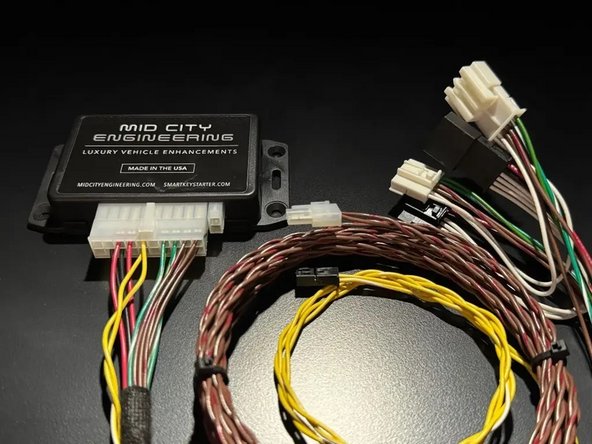
The SKSNG221D3 is a remote start and alarm interface.
Out of the box the remote start will working using the OEM key fob (1X press of the panic button or Lock-Unlock-Lock, if no panic button on key)
Vehicle Compatibility:
- S Class 2007-2013
- CL 2007-2013
The SKSNG221D3 is compatible with the following add-ons:
- Any current Compustar Drone Smart Phone Control (X1, X2, LTE, MAX, XC)
- Compustar DAS II digital sensor for shock, tilt, glass break, and tow sensing (uses OEM horn for alarm)
- Compustar RF antenna and remotes (NON-AM remotes only, AM remotes NOT compatible)
- Directed Smart Start
- Compustar external remote start + alarm brain (eg, CM900, CMX). Note: RS232 4-pin to 4-pin data cable with RX and TX reversed on one end required for external alarm
- Compustar KeyLocker
- Compustar KP2 touch pad (KeyLocker or Compustar CM required)
The installation to the vehicle involves the following:
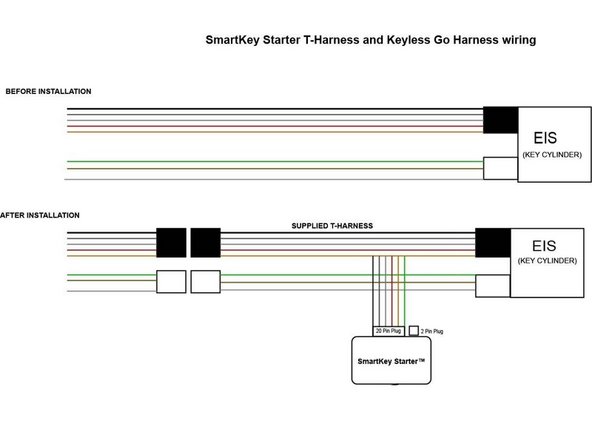
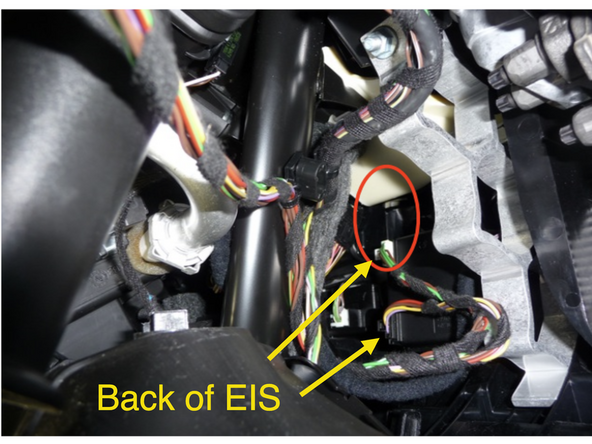
- T-harness connection behind the EIS (electronic ignition switch)
- Keyless Go jumper harness (only required for vehicles equipped with push to start (Keyless Go)
- Optional accessories and add-ons
There is no flashing required for this installation, but options settings can be programmed using the instrument cluster menu. See user's manual (link below) for options settings. Please go through menu to make sure settings such as run time are set to preferred setting.
DO NOT MOUNT THE MODULE NEAR ANY HEAT SOURCES IN THE VEHICLE. SPECIFIC LOCATIONS TO AVOID ARE THE HEATER CORE ANDTHE TRANSMISSION TUNNEL
See end of guide for troubleshooting error codes
Tools
Parts

-
-
Gain access to rear of EIS (electronic ignition cylinder)
-
S Class Disassembly (pictured):
-
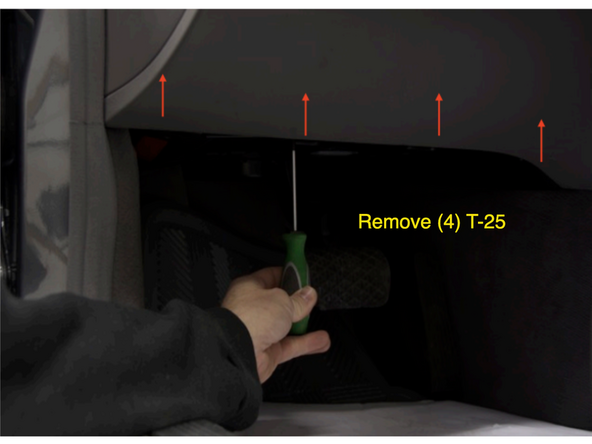
Remove (4) T-25 screws from driver’s underdash panel
-
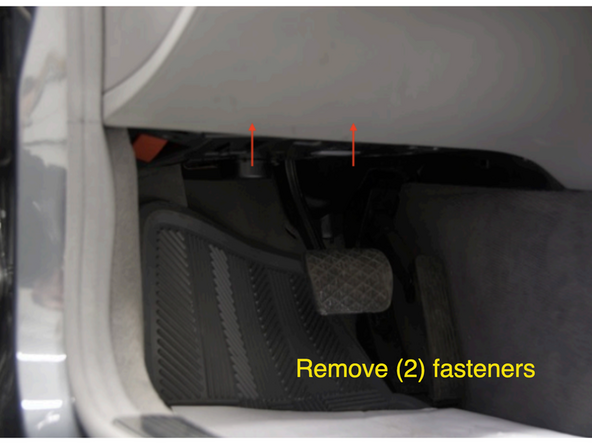
Remove (2) plastic fasteners from driver’s underdash panel from either side of the brake pedal
-
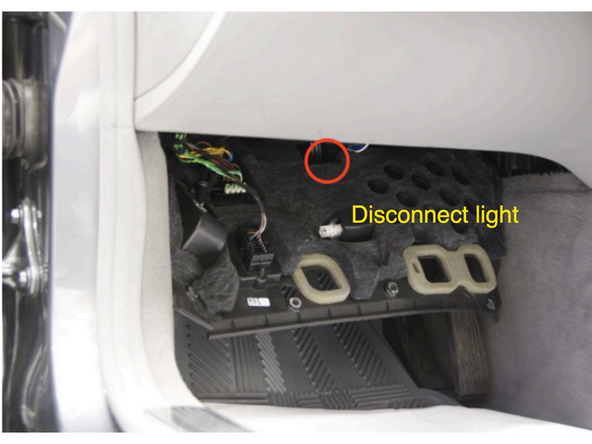
Lower driver’s underdash panel and disconnect underdash light connector
-
When lowering underdash panel be careful not to move brake switch out of alignment
-
CL Disassembly: To access EIS, remove HVAC panel and CD changer. Click here for CL specific diassembly instructions
-
-
-
Disconnect 6-pin black plug (lower) from EIS first
-
Disconnect 6-pin white plug (upper) from EIS
-
Connect OEM harness to provide T-harness: Connect white OEM plug to white mating plug on T-harness and connect black OEM plug to black mating plug on T-harness
-
Connect 6-pin white plug to EIS (upper) plug first where white plug was removed
-
Connect 6-pin black plug to EIS (lower) plug where black plug was removed
-
-
-
The SKSNG221D3 T-harness has a twisted pair of yellow and yellow/white wires terminating to a 2-pin plug
-
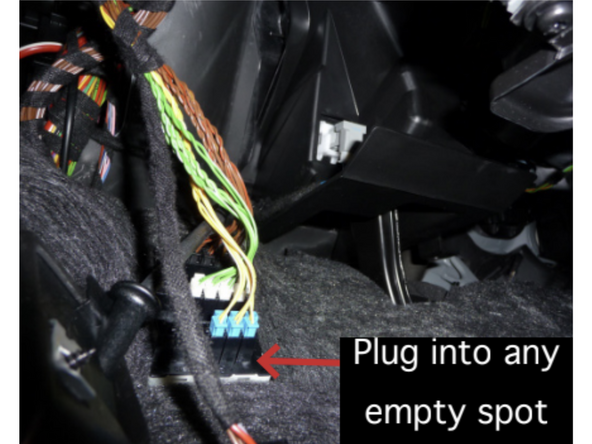
Locate CAN distribution block (row of connectors) with yellow and yellow/white OEM wires in driver side underdash
-
Connect provided 2-pin plug at the end of the yellow and yellow/white wires to any empty spot in the distribution block
-
-
-
Start vehicle with key or push to start button to verify working condition. If the vehicle starts and runs normally and with no errors, continue to the next step. If there are errors or the vehicle does not start, check connections and fuses.
-
Let vehicle run for at least 30 seconds to sync with key
-
-
-
Attempt to remote start by pressing the panic button 1X on the OEM key fob
-
If the vehicle is not equipped with a panic button, use LOCK-UNLOCK-LOCK sequence from OEM fob to remote start
-
Be sure to start vehicle manually and let run for at least 30 seconds before attempting remote start. If ignition is turned on for any reason and does not stay on for at least 30 seconds the vehicle will not remote start and will produce error code 5 (5X parking light flashes)
-
Vehicle should remote start
-
If remote start fails, count the number of parking light flashes to determine the error code. The parking lights will flash between 4X and 10X (this is the error code) and may be followed by a short pause and then 3X flashes for shutdown. The first set of flashes determines the error code. See bottom of guide for troubleshooting error codes.
-
Vehicle can be shut down from the OEM key by either pressing the panic button or LOCK-UNLOCK-LOCK command
-
-
-
Remote start vehicle. Once vehicle is started, to perform key takeover insert the key and turn to the 2nd position (IGN) or press the push to start button 1X (if applicable)
-
Note: do not turn the key past the 2nd position. If the key is turned to crank during key takeover, the HVAC will not work properly until the ignition is cycled
-
Parking lights will flash 3X and vehicle can be shifted into gear
-
After key takeover, make sure to leave the vehicle running for at least 30 seconds. If the vehicle is shut down or turn off before 30 seconds, the remote start will not be synced with the key and you will get error code 5 (5X parking light flashes). To fix error code 5, start the vehicle manually and let run for at least 30 seconds
-
Whenever the vehicle is started manually or ignition is turned on, be sure to leave the vehicle running or the ignition on for at least 30 seconds. If vehicle is started or ignition turned on and shut off in less than 30 seconds, it will result in error code 5 when trying to remote start
-
-
-
Remote start vehicle
-
Once vehicle has remote started, press the brake pedal and confirm that vehicle shuts down
-
-
-
Open hood
-
Attempt to remote start and confirm vehicle does not remote start. Parking lights should flash 7X times
-
-
-
The SKSNG221D3 has a harness with twisted brown and brown/red wires terminating to a white 2-pin plug on one end and a black 2-pin plug on the other end (KG harness). These are for the Keyless Go connection.
-
This harness is only used for vehicles with push to start (Keyless Go). If the vehicle does not have push to start, do not use this harness and skip Keyless Go connection steps
-
If the vehicle does have push to start, this harness must be run from the SmartKey Starter® module to the specified CAN distribution block. At the distribution block there is a set of wires from the OEM Keyless Go module. A short test will be used to find the correct set of wires.
-
-
-
The CAN distribution block is located under the rear section of the driver's front seat
-
Move driver seat as far forward as possible
-
Remove vent under driver seat
-
Locate distribution block with brown and brown/red OEM wires underneath vent
-
-
-
To locate the wires in the distribution block that will be removed from the block and connected to the supplied harness, a short test will be used using the LEDs on the SmartKey Starter module
-
Connect provided KG harness to 2-pin white plug on SmartKey Starter module labeled KG and remove push to start button
-
Insert key in ignition and turn to ACC. FIRST position (one click)
-
Yellow LED on SmartKey Starter module will flash. Red LED will also flash
-
Remove the OEM connectors from the distribution block one at a time and observe LEDs
-
It may take up to 10 seconds for the LEDs to respond
-
Connect the plug that caused the yellow LED to stop flashing to the provided Keyless Go harness. Check LEDs on SKS module. Green and red LEDs on module should be flashing (with key in ACC), indicating communication with KG module. If green LED is not flashing, check connections and retest.
-
-
-
Once the Keyless Go connection is completed, you can test it by verifying KG operation while the vehicle is started remotely
-
Start engine manually and let run for at least 30 seconds
-
Turn vehicle off
-
Remote start vehicle
-
Once vehicle is started remotely, test lock / unlock from door handle (key must be on you). If the Keyless Go lock and unlock from the door handle work while the vehicle is started remotely, all Keyless Go connections were done properly.
-
If the lock / unlock from door handle do not work while vehicle is started remotely, go back to previous step and check connections and re-do KG finder test.
-
-
-
Compustar Drone: Connect to the GRAY 4-pin port labeled DRONE on the SmartKey Starter module.
-
Directed Smart Start: Connect 4-pin D2D cable from Smart Start to white 4-pin port labeled D2D on the SmartKey Starter module. Cut and insulate blue and green data wires (leaving only black and red for power and ground.
-
Connect 3-pin ESP plug from Smart Start to 3-pin white plug on SmartKey Starter labeled Smart Start. Do not ground gray wire from Smart Start.
-
Compustar DAS II sensor: Connect to 4-pin RED port labeled SENSOR on the SmartKey Starter module
-
Compustar RF remotes: Connect Compustar antenna to 4-pin BLUE port on the SmartKey Starter module labeled 4PANT
-
AM remotes are NOT supported
-
Compustar remote programming: Cycle key from off to ignition 5X- parking lights will flash 1X after the 5th cycle. After the 5th cycle, press the button on the antenna (if antenna has a button) and press LOCK on each Compustar remote. Parking lights will flash when each remote is paired. Parking lights will flash 2X when exiting programming
-
-
-
Directed RF remotes: to add Directed remotes, a Directed XL202 RF to data converter must be used. Connect the XL202 to the 4 pin white plug labeled D2D on the SmartKey Starter module. Connect Directed RF antenna to XL202 and follow XL202 programming instructions
-
Compustar Alarm/Remote start module: an external alarm can be added using a Compustar Alarm/RS module (CM900, CMX, etc). To connect alarm use a RS232 cable. Plug one end of RS232 cable into BLACK port on CM7000 and other end of RS232 cable into GRAY 4 pin port labeled DRONE on SmartKey Starter module
-
RS232 cable must have blue and white (RX and TX) wires reversed on one end of the cable. For example, if blue wire is in the outside pin position on one connector, it must be in the inside pin on the other side of the cable
-
Connect power, ground, and ignition wire from low current harness of Compustar CM. Constant power and ground can be wired to the SmartKey Starter T-harness
-
Connect all accessories into Compustar CM
-
Compustar KeyLocker and KP2: A KP2 Compustar touchpad can be connected using either a Compustar CM or a KeyLocker module. Connect KeyLocker to GRAY port labeled DRONE
-
-
-
Locate a place to secure the Smartkey Starter module in the dash cavity.
-
DO NOT mount the module on or near any heat sources or moving parts (eg, vents or steering column)
-
Secure the module in its final location. Zip ties are recommended.
-
-
-
Reassemble dash and any panels removed running wires
-
The provided warning sticker must be installed in this location or your SmartKey Starter® warranty will be voided
-
Install provided warning sticker on intermediate panel covering OBD II plug access. The purpose of the sticker is to inform anyone working on the vehicle that the vehicle is equipped with a remote starter
-
Remote starter must be turned off (valet mode) any time the vehicle is being serviced or undergoing any diagnostic tests or parked in a location where it is not safe for the vehicle to start.
-
-
-
Use instrument cluster menu to check options settings (run time, light flash, etc) to make sure settings are to preference. See user's manual for instrument cluster menu instructions: Click Here for User's Manual
-
Troubleshooting:
If vehicle receives the command, but fails to remote start, the parking lights will flash a # of times. The number of parking light flashes corresponds to an error code. To troubleshoot no remote start count the number of parking light flashes.
Note: after a brief pause, the error code may be followed by a shutdown sequence of 3X flashes after the initial code
Error codes:
4 Flashes: Valet mode. The remote start is in valet mode (remote start off). Click here for valet mode instructions using the instrument cluster menu.
5 Flashes: Maximum 5 remote start attempts exceeded or vehicle is not synced with the key.
Start vehicle manually and let run for at least 30 seconds.
Whenever the vehicle is started manually or ignition is turned on, be sure to leave the vehicle running or the ignition on for at least 30 seconds. If vehicle is started or ignition turned on and shut off in less than 30 seconds, it will result in error code 5 when trying to remote start. The system stores enough error codes for 5 remote start attempts before it needs to be synced with the key.
6 Flashes: Brake depressed. The vehicle sees that the brake is depressed. If the brake pedal is not pressed down, it is possible that the brake switch is out of alignment. Check brake switch above brake pedal. If brake switch is out of alignment, you may see brake lights on all the time when the vehicle is started.
7 Flashes: Hood open. The remote start will not work if the hood is open or latch is not fully closed.
8 Flashes: RPM overrev. Vehicle sees that RPM is too high.
10 Flashes: Communication error. Check connections and power cycle module.
Troubleshooting:
If vehicle receives the command, but fails to remote start, the parking lights will flash a # of times. The number of parking light flashes corresponds to an error code. To troubleshoot no remote start count the number of parking light flashes.
Note: after a brief pause, the error code may be followed by a shutdown sequence of 3X flashes after the initial code
Error codes:
4 Flashes: Valet mode. The remote start is in valet mode (remote start off). Click here for valet mode instructions using the instrument cluster menu.
5 Flashes: Maximum 5 remote start attempts exceeded or vehicle is not synced with the key.
Start vehicle manually and let run for at least 30 seconds.
Whenever the vehicle is started manually or ignition is turned on, be sure to leave the vehicle running or the ignition on for at least 30 seconds. If vehicle is started or ignition turned on and shut off in less than 30 seconds, it will result in error code 5 when trying to remote start. The system stores enough error codes for 5 remote start attempts before it needs to be synced with the key.
6 Flashes: Brake depressed. The vehicle sees that the brake is depressed. If the brake pedal is not pressed down, it is possible that the brake switch is out of alignment. Check brake switch above brake pedal. If brake switch is out of alignment, you may see brake lights on all the time when the vehicle is started.
7 Flashes: Hood open. The remote start will not work if the hood is open or latch is not fully closed.
8 Flashes: RPM overrev. Vehicle sees that RPM is too high.
10 Flashes: Communication error. Check connections and power cycle module.
